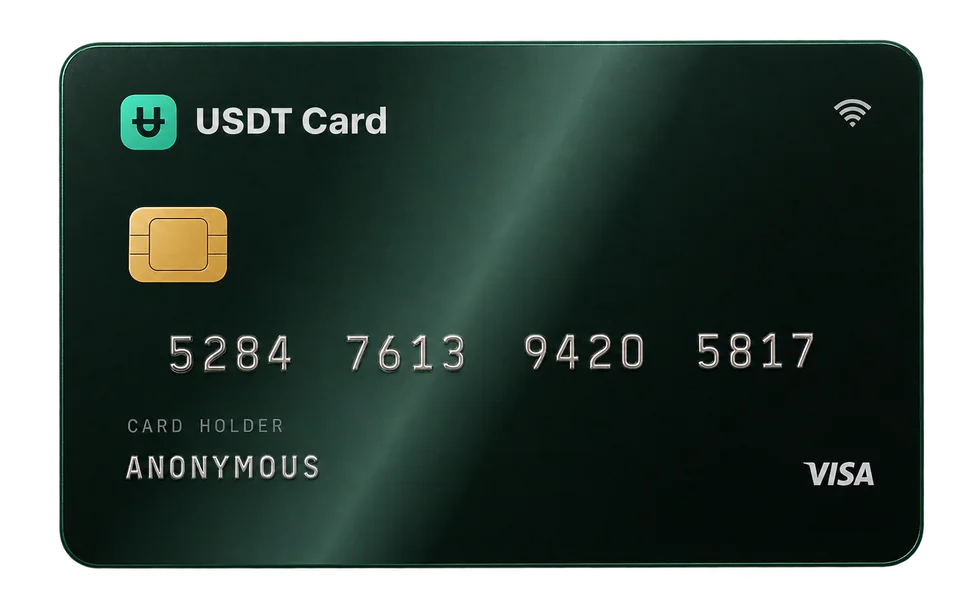
How to Add a Crypto Card to Apple Pay and Google Pay
Add a crypto virtual card to Apple Pay or Google Pay by entering its card details in your phone's wallet. Step-by-step setup, the right BIN to choose, and fixes when it fails.
To add a crypto card to Apple Pay or Google Pay, open your phone's wallet app, choose to add a credit or debit card, and enter the virtual card's number, expiry date and CVV from your card dashboard. Once the wallet accepts the card, you can tap your phone to pay at any contactless terminal, and the payment is drawn from the card's balance, which you funded with crypto.
Why put a crypto card in a mobile wallet
A virtual card exists only as numbers on a screen. That works well for online checkouts, but most shops want a card or a phone at the till. A mobile wallet closes that gap:
- Pay in physical stores at contactless terminals, with no plastic card.
- Faster online checkouts in apps and on websites that offer Apple Pay or Google Pay buttons.
- The card number stays private. Wallets typically use a device-specific token for in-store payments rather than sending your actual card number to the merchant.
- Phone-level security. Payments are confirmed with Face ID, Touch ID, a fingerprint or your device PIN.
On USDT Crypto Card, Apple Pay and Google Pay support is included in the Virtual plan.
Before you start
Check these first; most failed wallet setups trace back to one of them:
- A confirmed email. You need it before you can deposit, issue or fund a card.
- A funded card. Issue a card and load it from your balance. Some wallets run a small verification check when you add a card, so a card with zero balance can fail.
- A wallet-friendly BIN. BINs differ in how well they work with mobile wallets. When you issue the card, choose one of the BINs marked for Apple Pay and Google Pay. You can compare all 9 BINs in the cards section, and our guide on what a BIN is explains why it matters.
- A supported phone. Apple Pay needs a compatible iPhone or Apple Watch; Google Pay needs an Android phone with NFC and a screen lock set up.
How to add the card to Apple Pay (iPhone)
- In your USDT Crypto Card dashboard, open the card and reveal its number, expiry date and CVV.
- On your iPhone, open the Wallet app.
- Tap the + button and choose Debit or Credit Card.
- Choose to enter the card details manually, then type the card number, the name on the card, the expiry date and the CVV. The default name on the card is "Anonymous"; use the exact name shown in your dashboard.
- Accept the terms and complete any verification step the wallet asks for.
- Once the card appears in Wallet, you can set it as your default card if you like.
To pay, double-click the side button (or the home button on older models), confirm with Face ID or Touch ID, and hold the phone near the terminal.
How to add the card to Google Pay (Android)
- In your dashboard, open the card and reveal its details.
- On your Android phone, open Google Wallet.
- Tap Add to Wallet, then Payment card, then New credit or debit card.
- Enter the details manually: number, expiry, CVV, name and the billing address fields the app asks for.
- Accept the issuer terms and finish any verification step.
- Make sure NFC is on and Google Wallet is set as the default payment app in your phone settings.
To pay, unlock your phone and hold it near the terminal.
If the wallet asks for verification
Wallet apps sometimes ask to verify a new card before activating it. Every USDT Crypto Card is enrolled in 3D Secure, and verification codes for your cards are sent to your confirmed email, so keep your inbox open while you add the card. If no code arrives within a few minutes, try again later or open a support ticket from your dashboard.
When the card won't add: common fixes
"Card not supported" or "Could not add card"
This usually means the wallet, or the card program behind it, isn't accepting that card for tokenization. The most effective fix is to issue a new card on a BIN marked for mobile wallets. Cards cost $1 each, so testing a second BIN is cheap.
The details were rejected
Re-check the number, expiry and CVV for typos. Use the name exactly as it appears on the card in your dashboard.
The card was added but payments fail
- Make sure the card has enough balance, including a buffer for terminals that pre-authorize a higher amount.
- Check that the card isn't frozen in your dashboard.
- On Android, confirm Google Wallet is the default contactless app and NFC is on.
- Look at the card's transaction history; declines show there with the merchant's name.
You're over a limit
On the Virtual plan, cards can spend up to $5,000 per transaction and $20,000 per month. Platinum, unlocked by a single deposit of $300 or more, has no spending limits.
Keeping the card topped up
The wallet spends whatever is on the card, so plan your top-ups. Moving money from your account balance to an existing card has no fee, with a $10 minimum. Deposits into your account carry a 2% fee below $300 and none from $300 or more. If you use the card for daily spending, one larger deposit and several free top-ups is usually the cheapest pattern. More in our guide to crypto card fees.
Virtual card in a wallet, or a physical card?
For most people, a virtual card in Apple Pay or Google Pay covers everyday in-store spending. A physical card is useful where contactless phones aren't accepted, or if you prefer not to rely on your phone. Platinum users can order one for a flat $20 delivery fee. We compare the two in virtual vs physical crypto cards.
Frequently asked questions
Can I use a crypto card with Apple Pay?
Yes. Add the virtual card's details to the Wallet app on your iPhone, then pay by tapping your phone at contactless terminals. Choosing a BIN marked for mobile wallets gives the best chance of the card being accepted.
Does Google Pay work with crypto virtual cards?
Yes. Add the card in Google Wallet as a new credit or debit card. Make sure NFC is on and Google Wallet is your default payment app.
Which BIN should I choose for Apple Pay and Google Pay?
Pick one of the BINs labelled for Apple Pay and Google Pay when you issue the card. They're selected for mobile-wallet compatibility.
Why does my wallet say the card isn't supported?
The card program behind that BIN may not support tokenization in that wallet. Issuing a card on a wallet-friendly BIN usually solves it.
Do I pay extra to use the card through a wallet?
No. A wallet payment is a normal card transaction, so it carries the same $0.30 fee for approved payments, and declines are free.